Skip to content
Aurum

A quiet library for everything you want to read, follow and keep.

Save articles, PDFs and EPUBs. Follow RSS feeds. Give newsletters their own address. Read all of it in one place.

On the web, on iPhone, and in Chrome.

Aurum on the web in three panes. The sidebar lists Continue reading, Inbox, Reading, Done and Archived, two queues, five content types and pinned color tags. The inbox shows a PDF at 12% read. The reader shows the essay “Why I read slower now” in a serif face, with one sentence highlighted and a floating toolbar for contents, type settings, listen, notes, focus and reading time.
An essay open in the reader, one line highlighted, with the toolbar for contents, type, listening and notes.

Three ways in

Three ways in, one library.

1 Save

Save anything you find

Web
Paste a URL, or press n to start a new save.
Chrome
Save the current tab, or every open tab at once. Right-click for “Save to Aurum”, “Save link” or “Save links from selection”. Pick tags as you save; the toolbar badge shows saves still pending.
iPhone
Share any link to Aurum from the iOS share sheet.
2 Subscribe

Feeds, kept apart

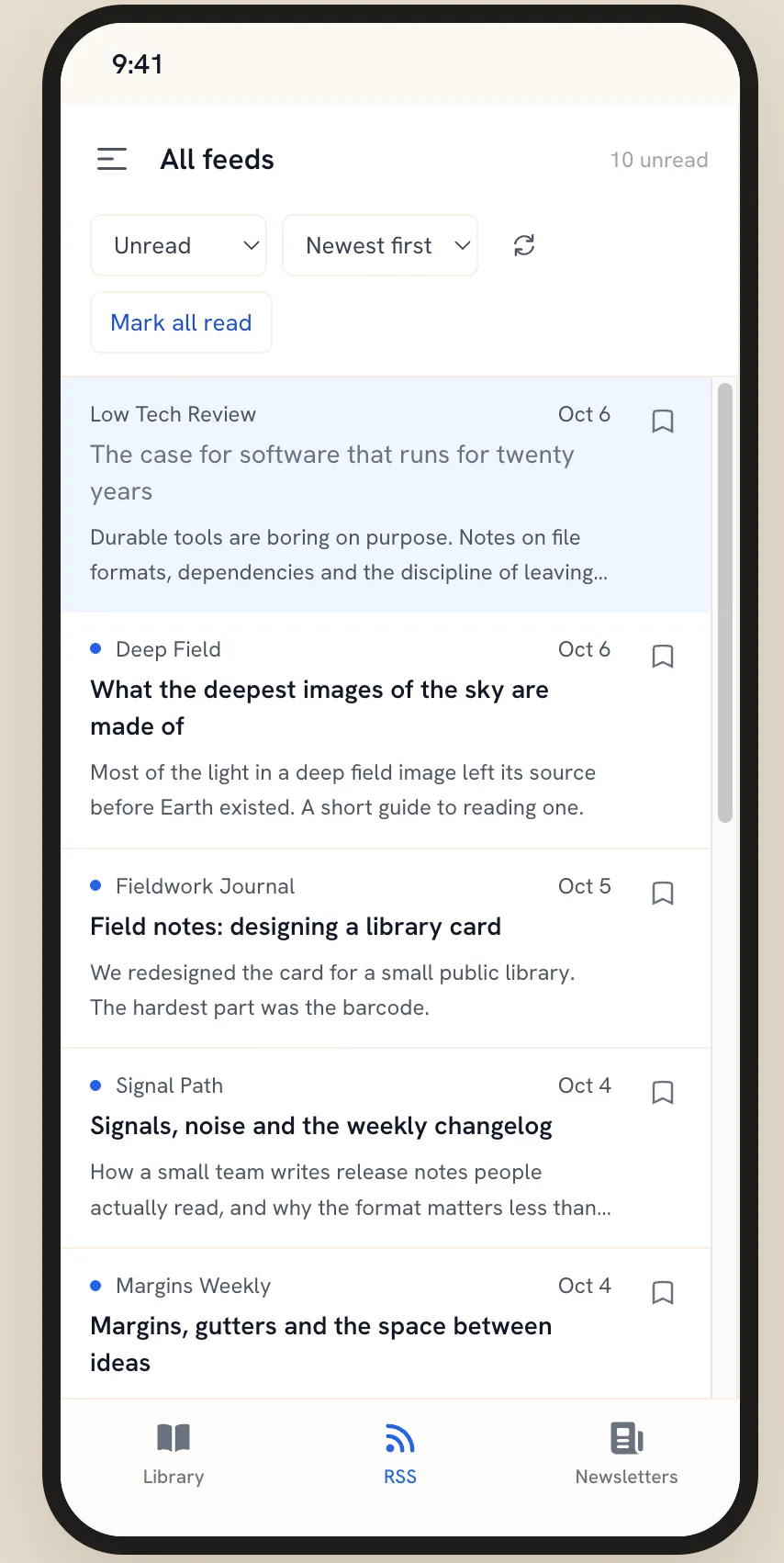
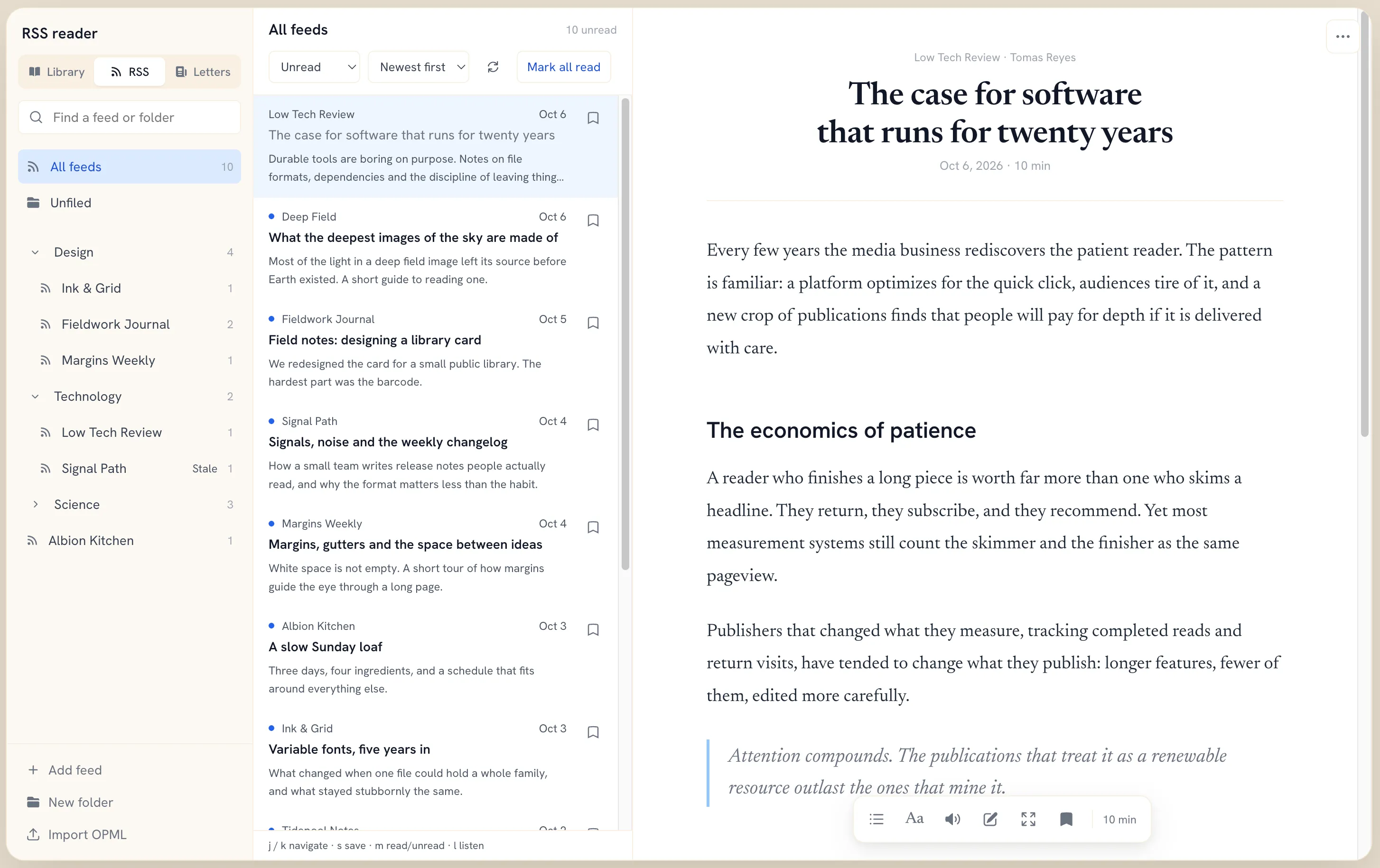
Follow sites by RSS without filling your Library. Entries wait in their own reader until you save one, with s or the bookmark.

  • Nested folders, with unread counts for every feed
  • An unread filter, newest or oldest first, and Mark all read
  • A Stale marker when a feed hasn’t loaded in two days; its entries stay readable
  • Import subscriptions from another reader with OPML
The iPhone app on the RSS tab: All feeds with 10 unread, Unread and Newest first filters, Mark all read, and entries each with a bookmark to save them.
The RSS reader. Nothing here touches your Library until you save it.

3 Receive

Newsletters, out of your inbox

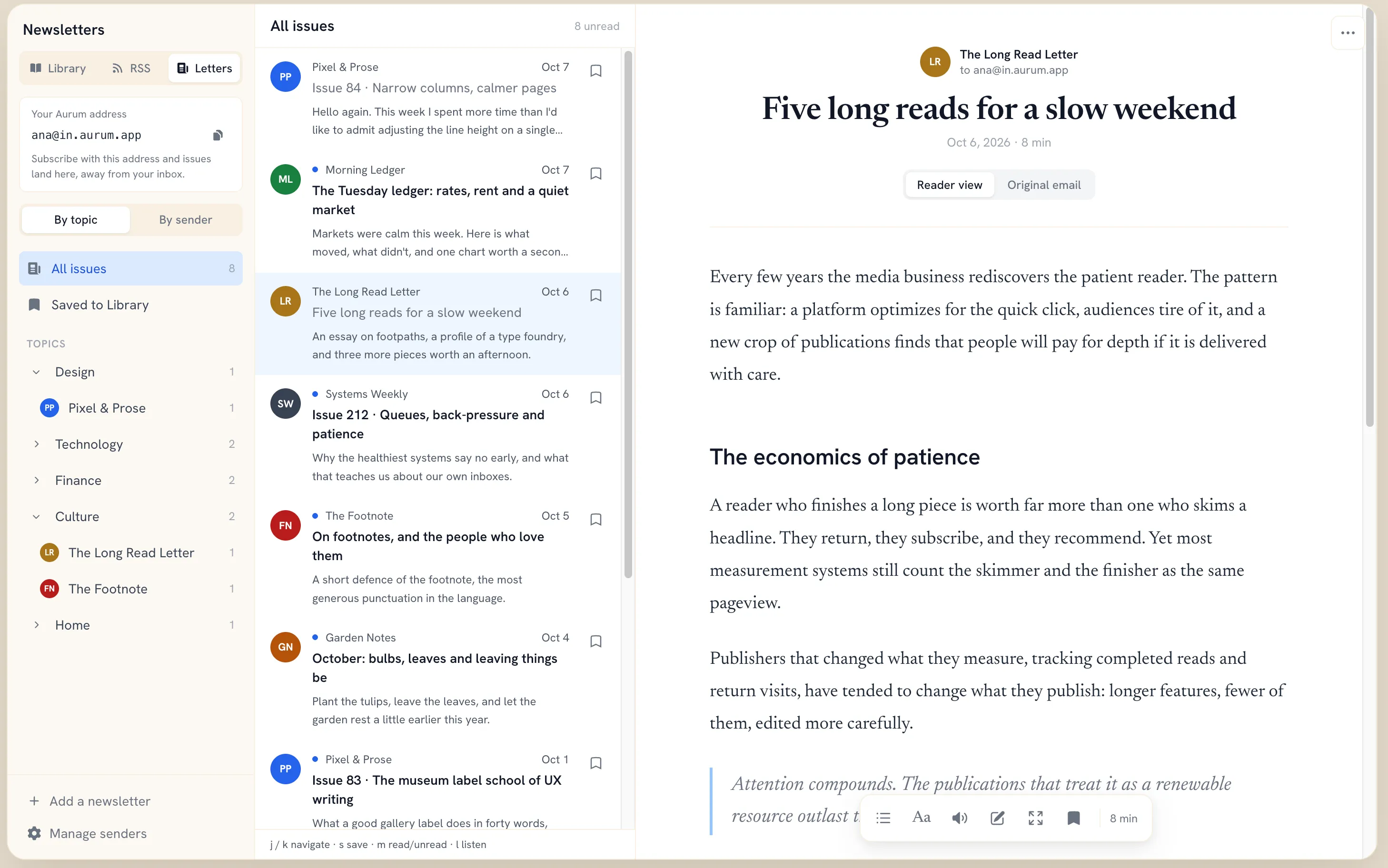
Every account comes with a private Aurum address. Subscribe with it, and issues arrive in Aurum instead of your email.

  • Group issues by topic or by sender
  • Switch between a clean reader view and the original email
  • Save the issues worth keeping to your Library
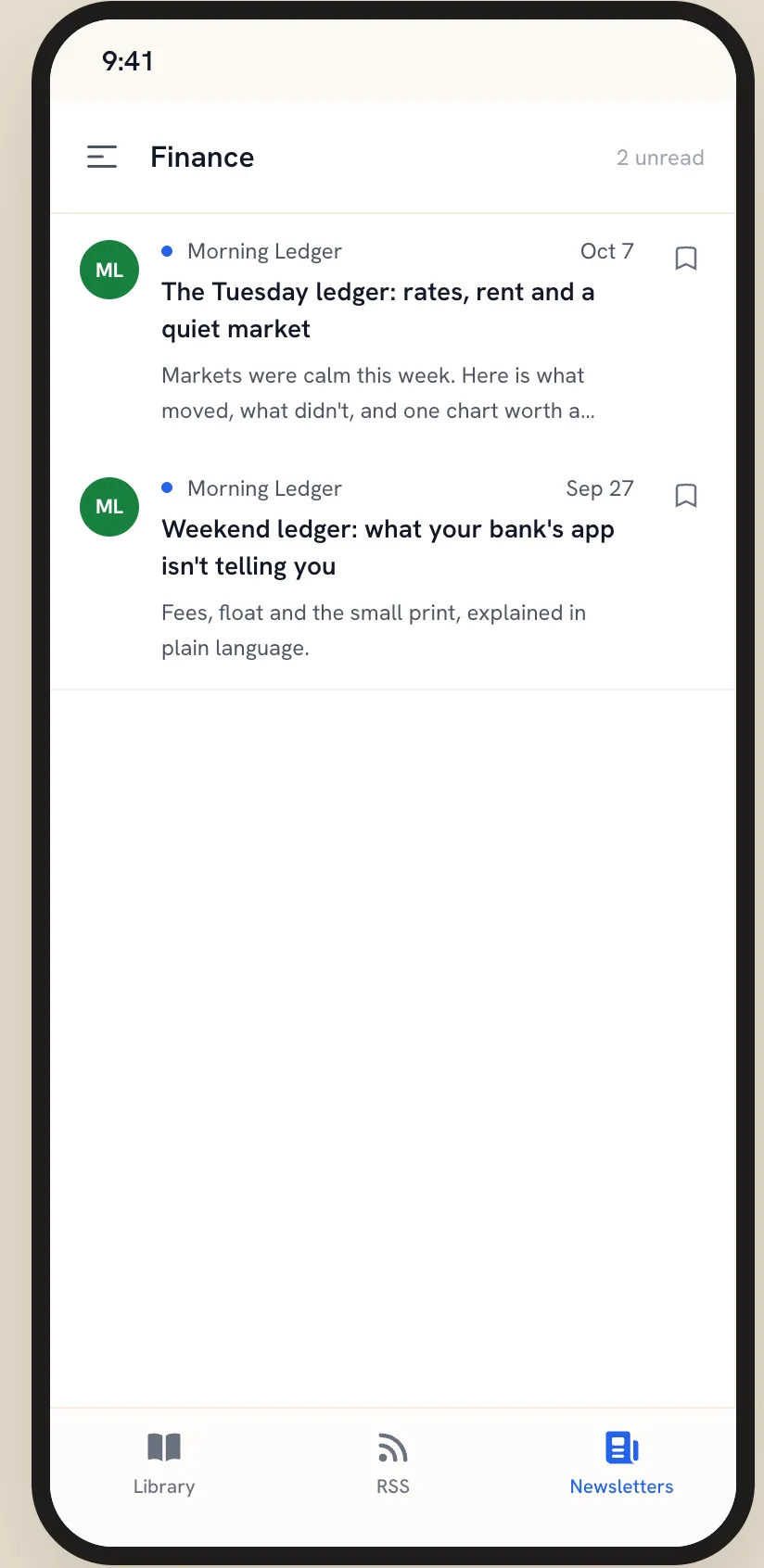
The iPhone app on the Newsletters tab, filtered to the Finance topic: two issues from Morning Ledger, each with a bookmark to save it.
Newsletters, grouped by topic, with your private address at the top.

The reader

A reader that keeps your place.

Clean serif text, set for long reading. Leave in the middle of a paragraph and Continue reading brings you back to it, on the web or on your phone.

A reading queue is closer to a mailbox: things arrive whether or not you asked for them, and the pile grows faster than it shrinks. Once I stopped treating the queue as an obligation, it became useful again.

A highlighted line from the essay in the screenshot above.
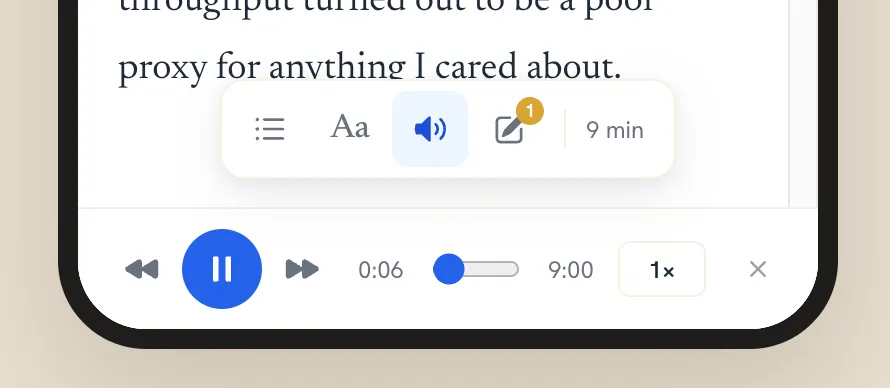
The bottom of the iPhone reader with Listen turned on: a player bar with skip back, pause, skip forward, 0:06 of 9:00 elapsed, and a 1× speed control.
Listening on iPhone.
Highlights and notes
Mark the passage that stopped you, and attach a note to it.
Listen
Have any article read aloud. Skip back, skip forward, change the speed.
Type, contents, focus
Adjust the type from Aa. Jump between headings with the table of contents. Focus mode leaves only the text.
Your place, kept
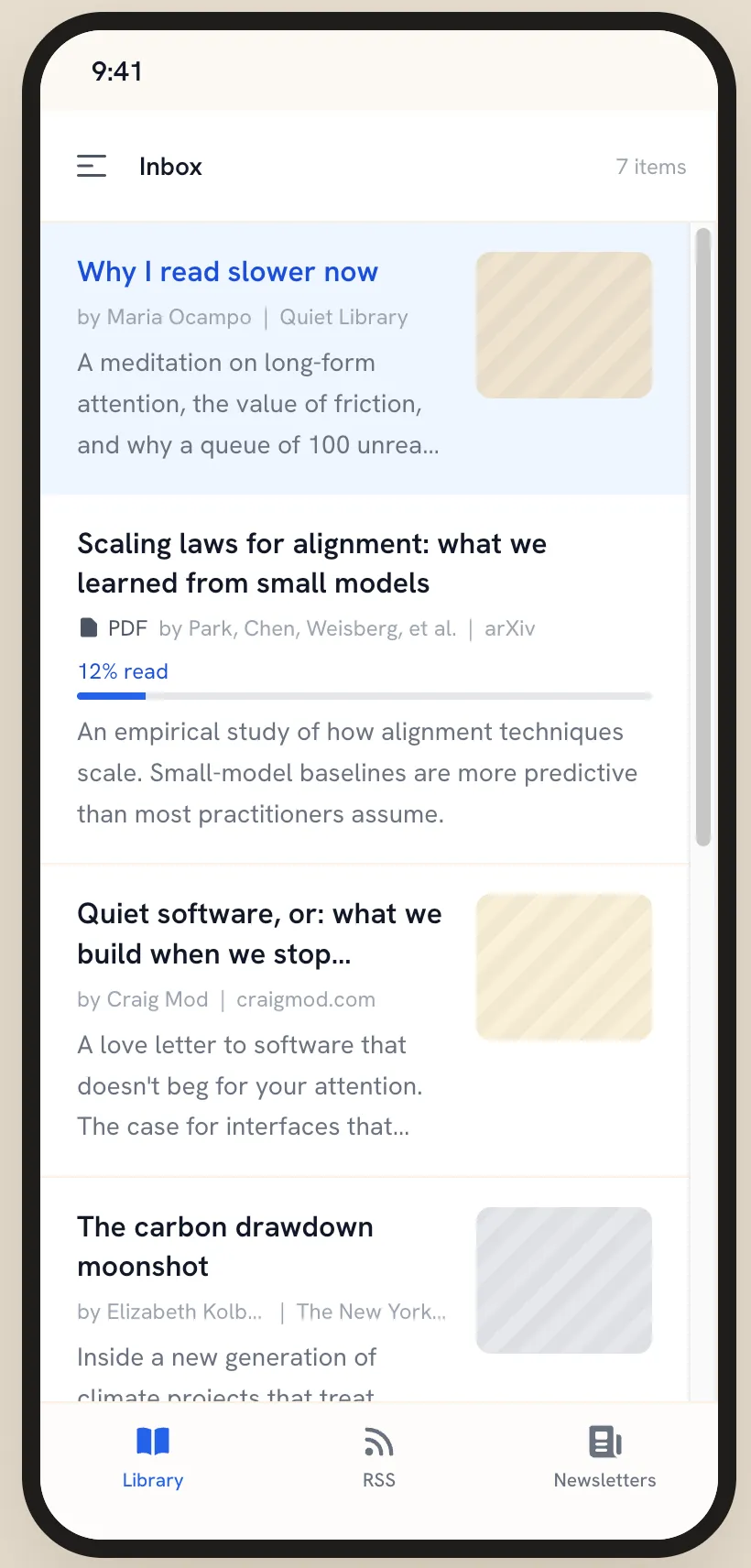
Progress is remembered for every item, so a PDF tells you it is 12% read before you open it.

Keyboard first on the desktop

jk
Next and previous item
n
New save
s
Save an entry to your Library
m
Mark read or unread
t
Table of contents
l
Listen
f
Focus mode

Formats

Articles, documents, and the rest.

Web articles
Parsed into clean reader text.
PDFs and EPUBs
Read inside Aurum, with your progress shown in the list.
Videos and podcasts
Saved next to everything else, with their own types so you can filter to just them.

Keeping order

Sorted the way you sort things.

Four statuses

  1. Inbox
  2. Reading
  3. Done
  4. Archived

Every item has one status, and the sidebar keeps a count for each list.

Tags
Give them colors, and pin the ones you use most to the top of the sidebar.
  • ai-safety pinned
  • design pinned
  • essay pinned
  • climate
Collections
Gather items by hand: a syllabus, a trip, a project.
Queues
Saved filter views that stay current, like “Reading list” or “AI safety watch”.

Everywhere you read

On the web, your iPhone, and Chrome.

Web
The full three-pane library, built for the keyboard.
iPhone
Library, RSS and Newsletters tabs. A share extension, Face ID or Touch ID lock, home-screen quick actions for Save URL and Open Inbox, and haptics.
Chrome
Save tabs, links and selections without leaving the page.
The iPhone app on the Library tab: the inbox, with a PDF showing a 12% read progress bar, and Library, RSS and Newsletters tabs along the bottom.
The iPhone app on the RSS tab: All feeds with 10 unread, Unread and Newest first filters, Mark all read, and entries each with a bookmark to save them.
The iPhone app on the Newsletters tab, filtered to the Finance topic: two issues from Morning Ledger, each with a bookmark to save it.
The iPhone app: Library, RSS and Newsletters, each a tab of its own. Swipe for the other tabs.

Moving in

Bring what you’ve already saved.

Pocket
Your Pocket ZIP export
CSV
Any spreadsheet of links
OPML
Subscriptions from another feed reader

Links you already have are skipped on the way in, and every import ends with a summary of what arrived.

What we leave out

What we leave out.

  • No ads. Nothing is placed between you and the text.
  • No algorithmic feed. You choose what comes next.
  • Your reading data is never sold. Your library is for you, not for advertisers.

Save one article. Read it properly.